
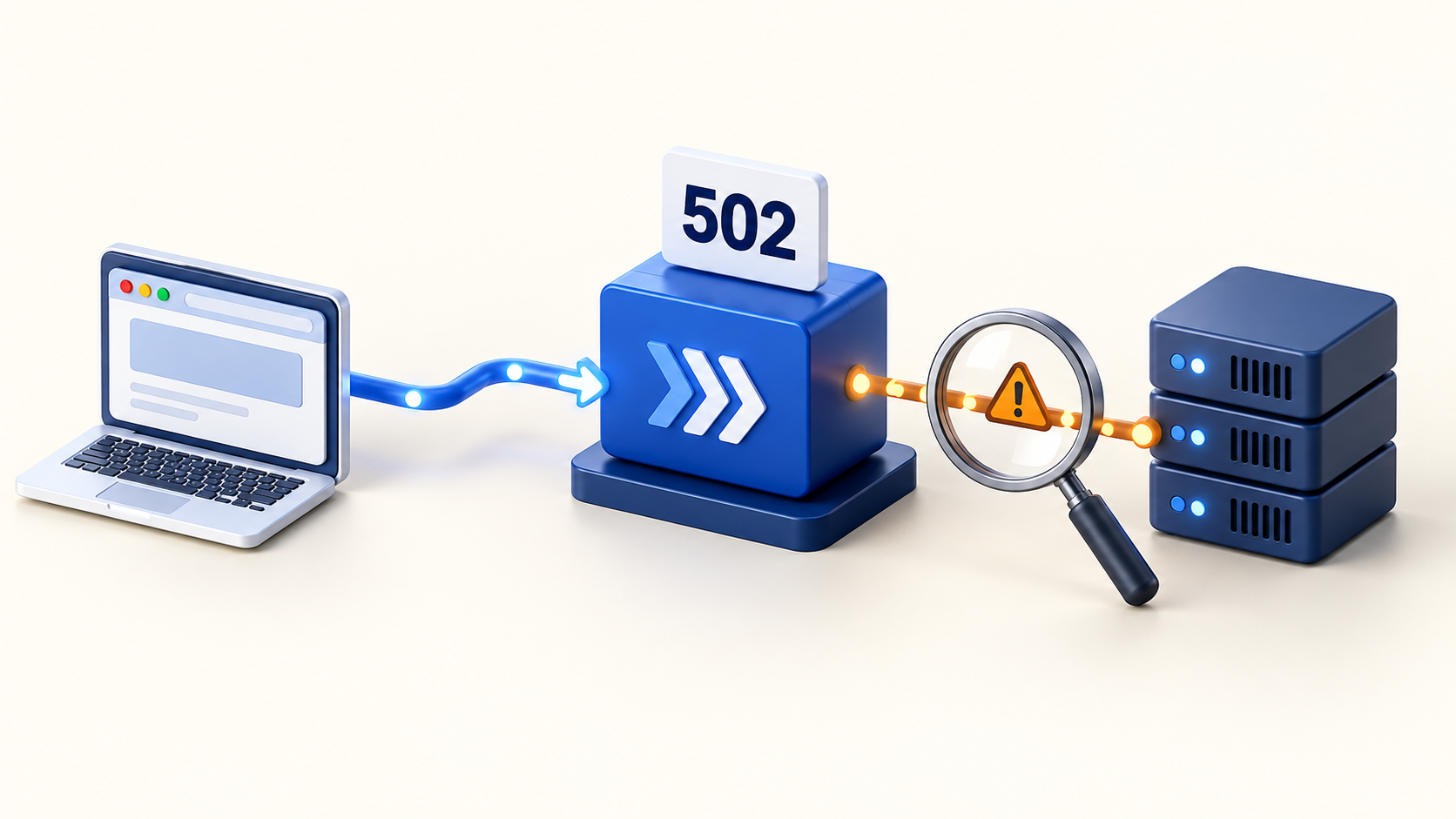
A 502 Bad Gateway error in Nginx means a gateway could not get a valid response from an upstream server. On an Ubuntu VPS, the failing connection is often between Nginx and PHP-FPM, a Node.js process, or a Python application server. The useful question is: which connection failed, and what changed just before it failed?
This guide follows a practical diagnostic order: capture the error, identify the upstream, test that service, make one targeted correction, and verify the website. It applies to a conventional Ubuntu installation using Nginx and systemd. Container deployments and hosting panels may use different service names, paths, and configuration controls.
Quick checklist: where to start
- Record the failing URL, time, and any recent deployment or PHP upgrade.
- Read the Nginx error log for that request.
- Find the upstream address in the affected website configuration.
- Check whether the application is running and listening at that address.
- Correct the specific service, socket, permission, or application fault.
- Test the configuration and recheck the same request.
Save a copy of any configuration you will edit. Replace the example domain, service name, port, and PHP version below with the values from your server. Read diagnostic output locally; logs and configuration dumps can contain credentials or private request details.
What is the difference between 502 and 504?
HTTP defines 502 as an invalid upstream response and 504 as an upstream response that did not arrive in time. These are useful distinctions, but a browser error page alone cannot identify the failing process. A CDN, load balancer, or another proxy may also generate the response. See the HTTP status definitions.
Note whether all pages fail or only dynamic requests. If static assets load while PHP pages fail, investigate the PHP request path first. If the problem began with a release, compare its runtime, dependencies, configuration, and listening address with the previous working release.
Step 1: Read the Nginx error log
On many Ubuntu package installations, start with:
sudo nginx -t
sudo tail -n 80 /var/log/nginx/error.log
sudo journalctl -u nginx --since "15 minutes ago" --no-pager
Use the website-specific log if its error_log directive points elsewhere. The system journal helps with service startup and reload failures; it may not contain the request errors written to Nginx log files. Reproduce one failing request and match its timestamp.
These log clues suggest the next investigation; they are not a diagnosis on their own:
- Connection refused: check the target port and whether the upstream process is running.
- No such file or directory: check the configured Unix socket path and whether the service created it.
- Permission denied: inspect socket access, parent directories, and applicable security policy.
- Upstream prematurely closed connection: inspect the application log for a crash, worker termination, or protocol mismatch.
- Upstream timed out: investigate slow dependencies or exhausted workers; this commonly accompanies a 504.
Nginx documents its logging and reload workflow; Ubuntu documents the journal filters used above.
Step 2: Identify the configured upstream
Inspect the affected domain's server block. For an HTTP application, look for proxy_pass. For PHP-FPM, look for fastcgi_pass. If either names an upstream group, follow that group to its server entries.
sudo nginx -TThis prints the configuration Nginx would load from disk, including included files. It can differ from the configuration currently running if edits have not been successfully reloaded. The Nginx command reference explains both -t and -T.
For example, proxy_pass http://127.0.0.1:3000; expects an HTTP service on the same host. A PHP configuration might use fastcgi_pass unix:/run/php/php8.3-fpm.sock;. These are examples to compare against your setup, not replacement configurations. In containers, loopback addresses refer to the current container.
Step 3: Fix a PHP-FPM socket or service mismatch
For Laravel or WordPress, discover the installed FPM services before choosing a version:
systemctl list-unit-files 'php*-fpm.service'
ls -l /run/php/
If the website uses PHP 8.3, inspect that service:
sudo systemctl status php8.3-fpm --no-pager
sudo journalctl -u php8.3-fpm --since "15 minutes ago" --no-pager
Compare Nginx's socket path with the FPM pool's listen value. After a PHP upgrade, a website may still point to the old version's socket. Select the runtime the application supports, then make the website and pool agree. Nginx supports both Unix sockets and TCP FastCGI upstreams.
For a permission error, check the Nginx worker account against FPM's socket owner, group, mode, and any configured ACLs. Also inspect directory traversal permissions. Adjust the pool configuration so socket permissions survive service restarts; avoid world-writable sockets. The PHP-FPM configuration reference explains these controls.
PHP-FPM speaks FastCGI, so an ordinary HTTP curl request to its socket or port is not a valid health test. Verify PHP through the website after correcting the connection. Our Laravel deployment guide covers the wider Nginx and PHP-FPM setup.
Step 4: Test Node.js or Python directly
For an application managed by systemd, inspect its actual unit. Here, myapp.service is a placeholder:
sudo systemctl status myapp.service --no-pager
sudo journalctl -u myapp.service --since "15 minutes ago" --no-pager
sudo ss -ltnp
Compare the listening address with Nginx's upstream. If the app should serve HTTP on port 3000, run this on the same host as Nginx:
curl --max-time 10 -i -H 'Host: example.com' http://127.0.0.1:3000/A refused connection suggests no reachable listener at that address. An HTTP response, even a 404, shows an HTTP service answered; confirm that it is your intended app and test the failing route too. A direct 500 directs attention to the application log. A timeout calls for checking the app and its dependencies. The curl manual describes the request options.
Check startup failures, missing dependencies, environment settings, working directories, and the service account. Use the process manager that owns the application; do not start a second copy manually on the same port. Keep private upstream ports private. For setup context, see Node.js with Nginx and systemd or Django with Gunicorn and Nginx.
Step 5: Investigate errors that happen under load
If the site recovers and then fails again, record resource and application evidence during the next failure:
free -h
df -h
sudo journalctl -k --since "30 minutes ago" --no-pager
Look for killed processes, memory pressure, full filesystems, repeated restarts, and application dependency errors. Check FPM logs for worker-limit warnings. Increasing worker counts without enough memory can worsen the problem; measure per-worker use and reserve capacity for the operating system and database.
A longer proxy timeout will not repair a dead process or missing socket. Nginx's proxy_read_timeout measures the gap between upstream reads, rather than a whole-request time budget. Change it only when the application behavior justifies it. See the proxy timeout reference.
Step 6: Verify recovery and prevent a repeat
After correcting the cause, use the owning service or panel to apply runtime changes. For an ordinary Ubuntu Nginx configuration change, test and reload only if the test succeeds:
sudo nginx -t && sudo systemctl reload nginxRecheck the original URL, a dynamic page, and a representative application operation. Confirm that new errors have stopped. Watch through the next deployment or traffic period that previously triggered the failure, rather than relying on one successful refresh.
Record the cause and correction in your deployment checklist. Monitor application health as well as process status. If a hosting panel generates configuration, use its supported controls to avoid manual edits being overwritten. For Core Panel evaluation, start with the website documentation and review the current security and supported-use status. Core Panel is currently classified as pre-production for isolated development environments.
Frequently asked questions
Will restarting Nginx fix a 502 Bad Gateway error?
It may coincide with temporary recovery, but it will not correct a broken application, wrong upstream port, or persistent socket mismatch. Read the error first so the corrective action addresses its cause.
Why did a 502 appear after a PHP upgrade?
Check whether the website still targets the previous FPM socket, whether the new pool started, and whether the application supports the selected PHP version and extensions.
Should I clear the browser cache?
For a repeatable upstream failure, start with server logs. If an old error remains after the origin is healthy, investigate the cache layer that serves it and verify the response for the affected URL.
What should I send to hosting support?
Send the domain, failing path, timestamp with timezone, recent changes, and a short redacted error excerpt. Include whether the upstream test succeeded. This gives support a reproducible starting point without sharing full logs or secrets.